
MiniMax H3 Image: AI Image Generator & Editor
Generate images from text or a reference, and edit photos with prompts.
Reference example
MiniMax H3 Image Examples and Prompts
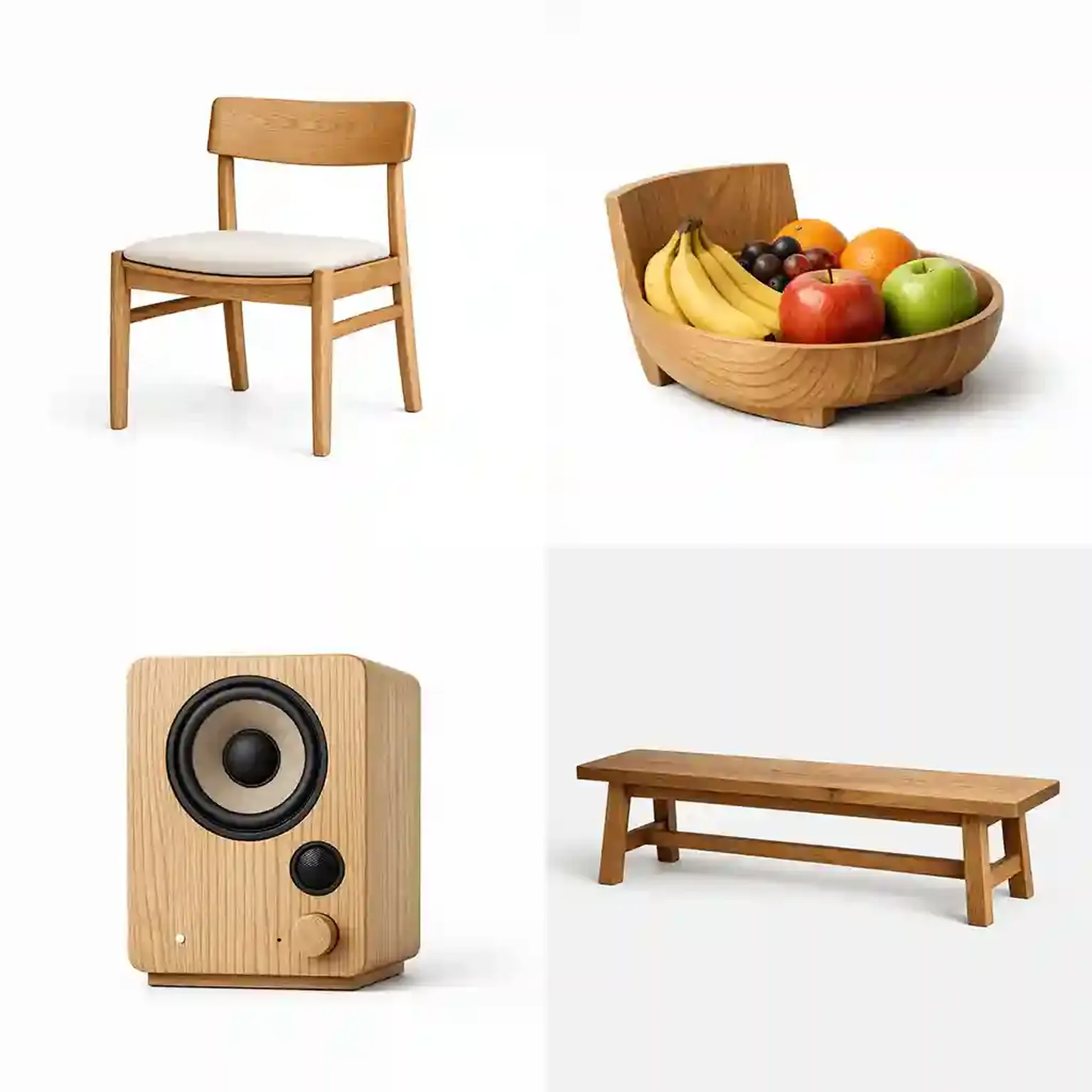
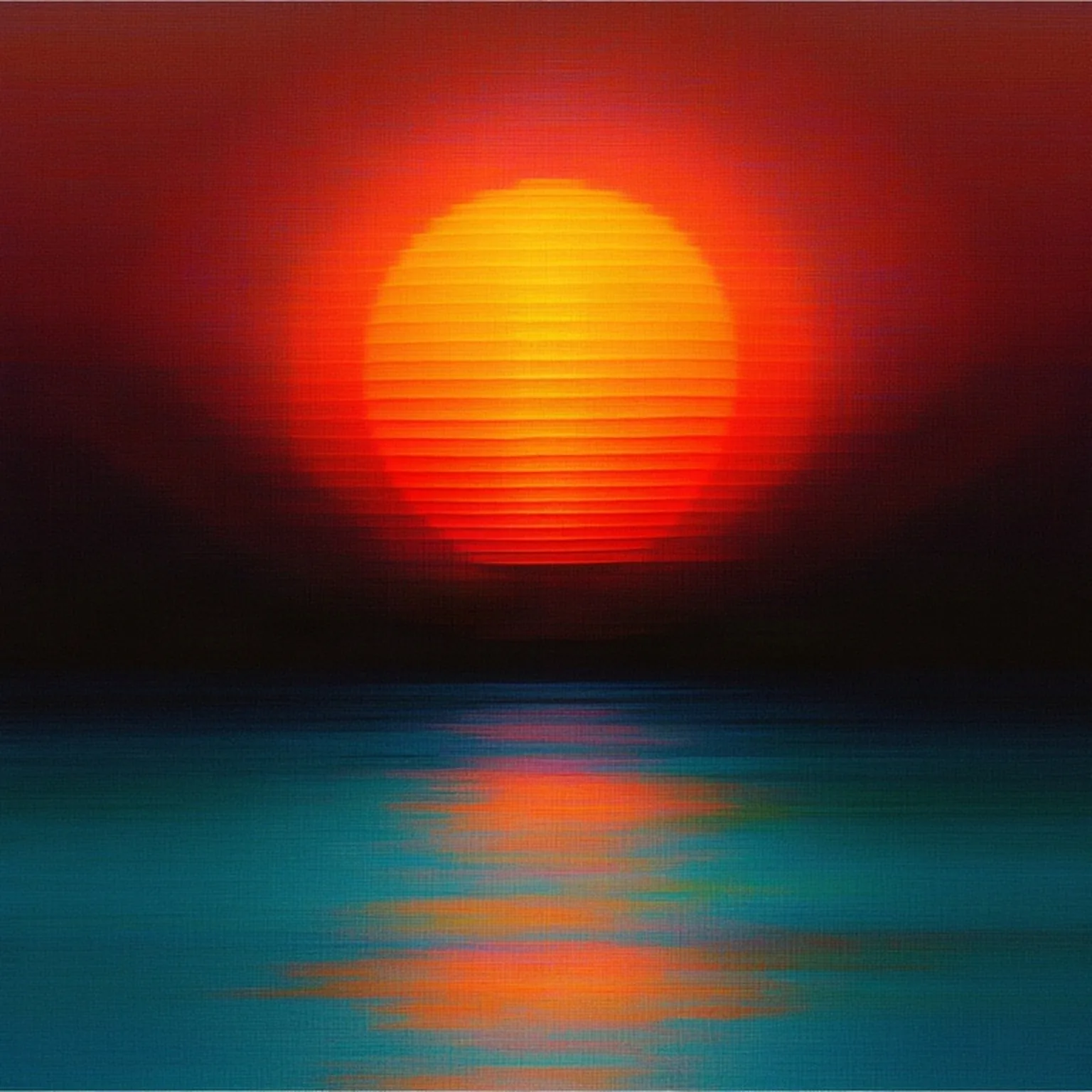
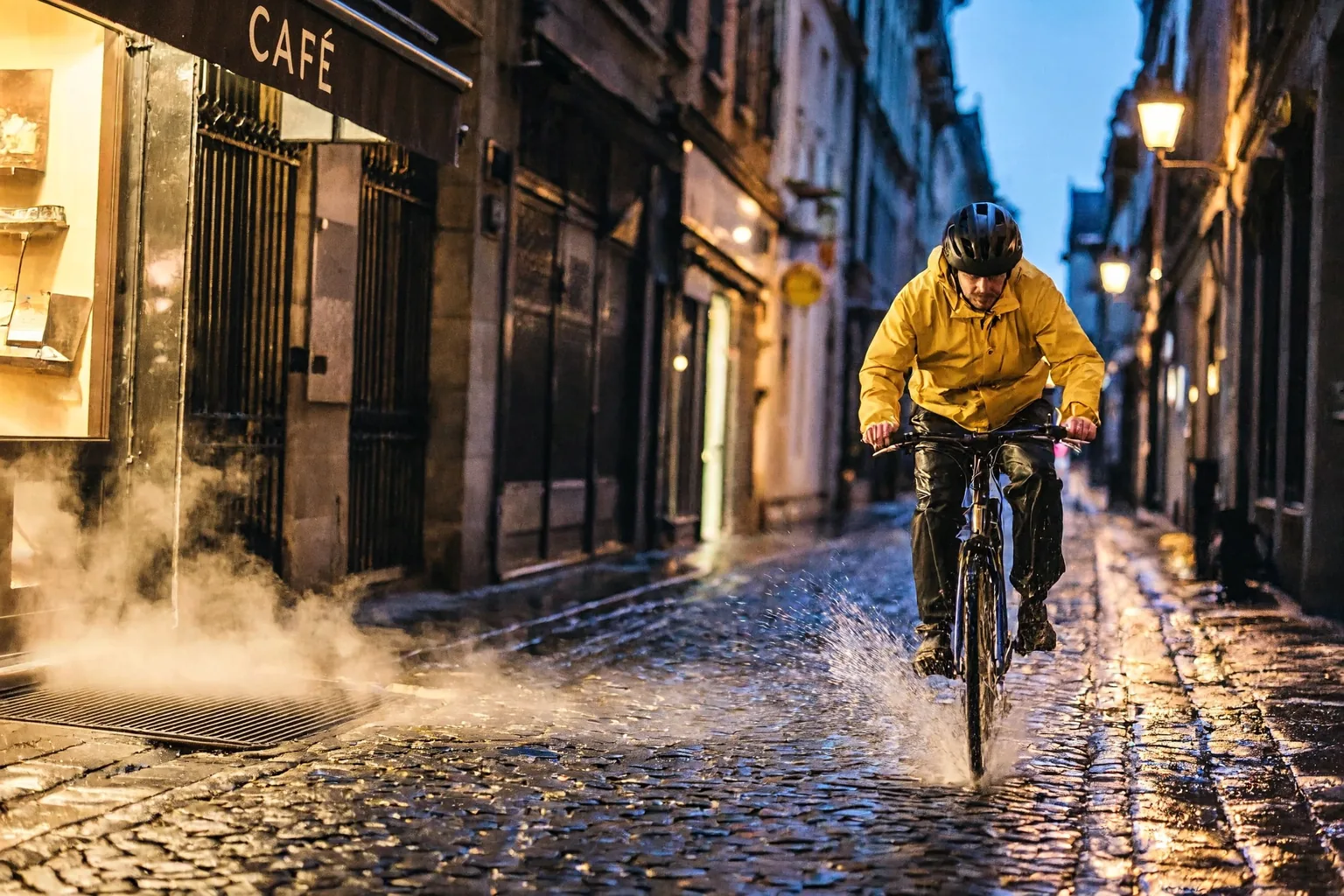
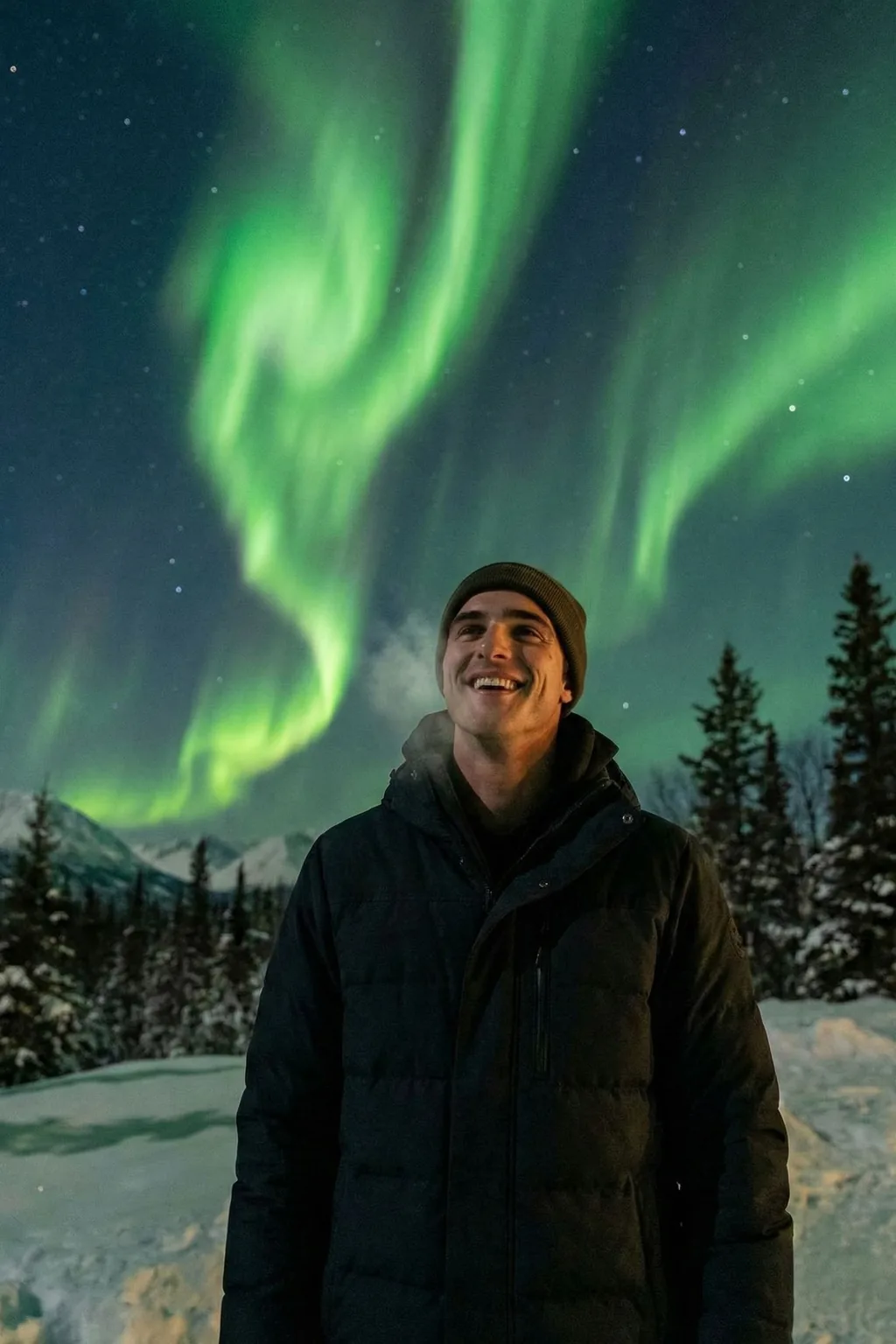
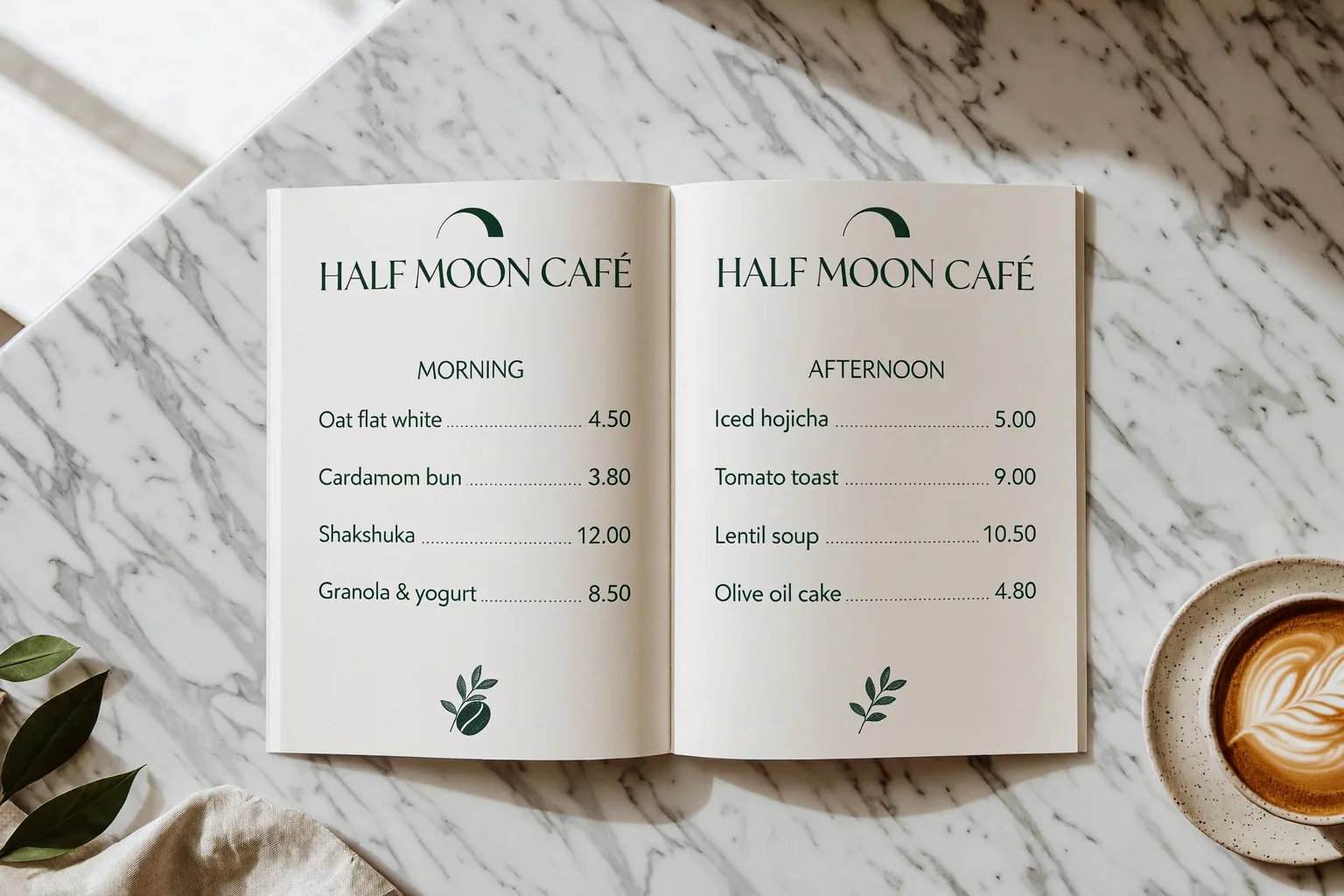
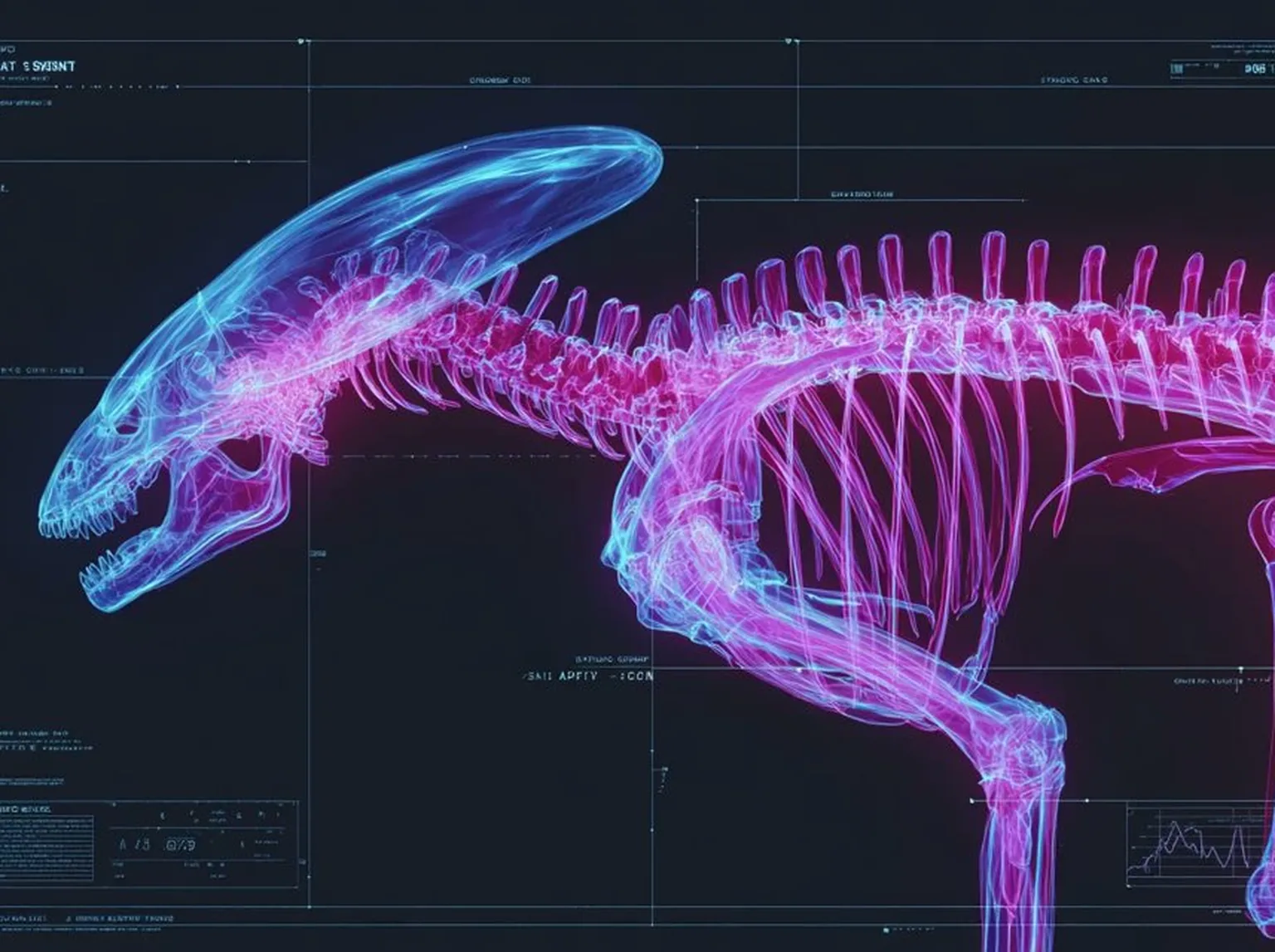
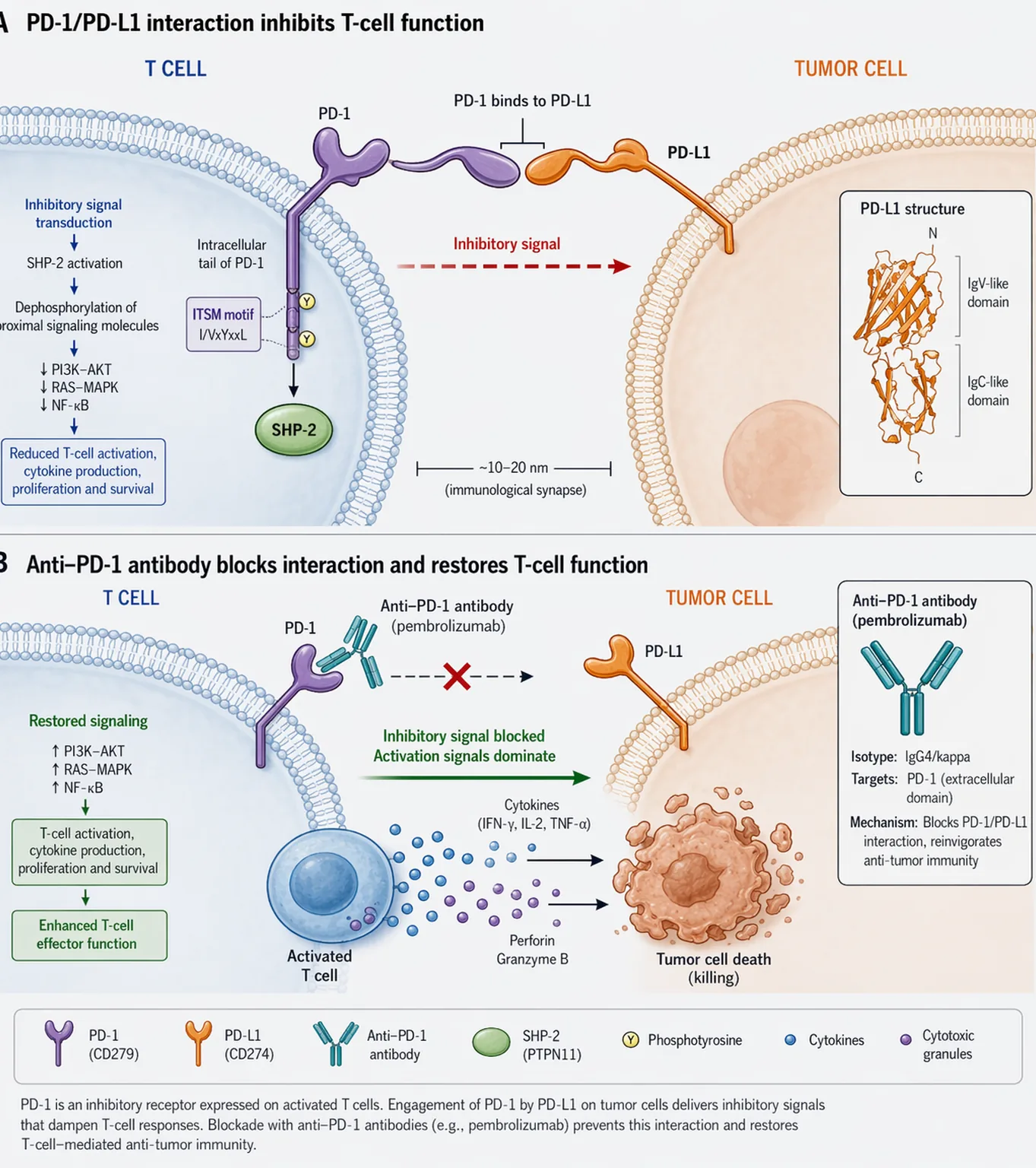
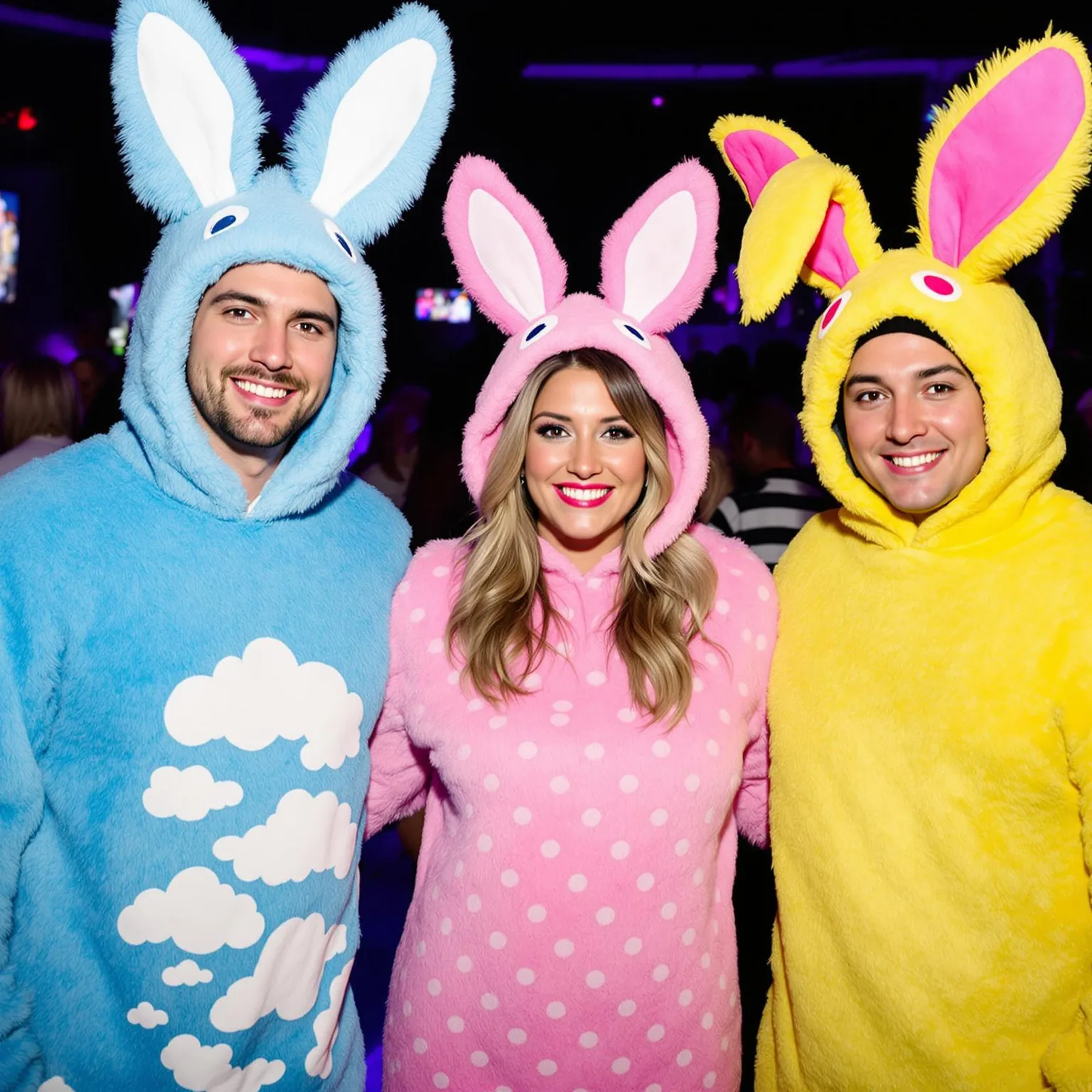
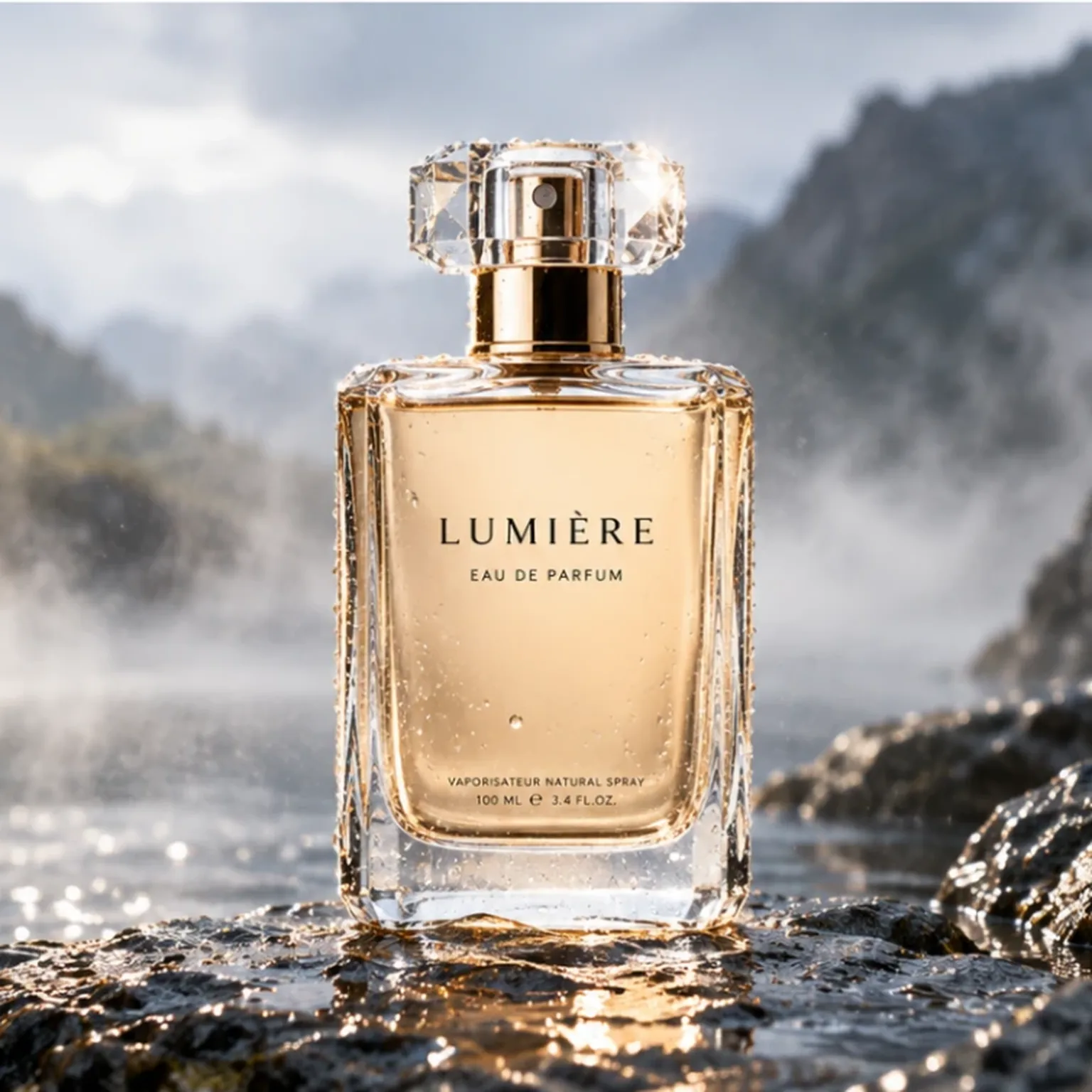
28 curated reference images across product shots, portraits, posters and diagrams. Copy any prompt or send it straight to the studio.
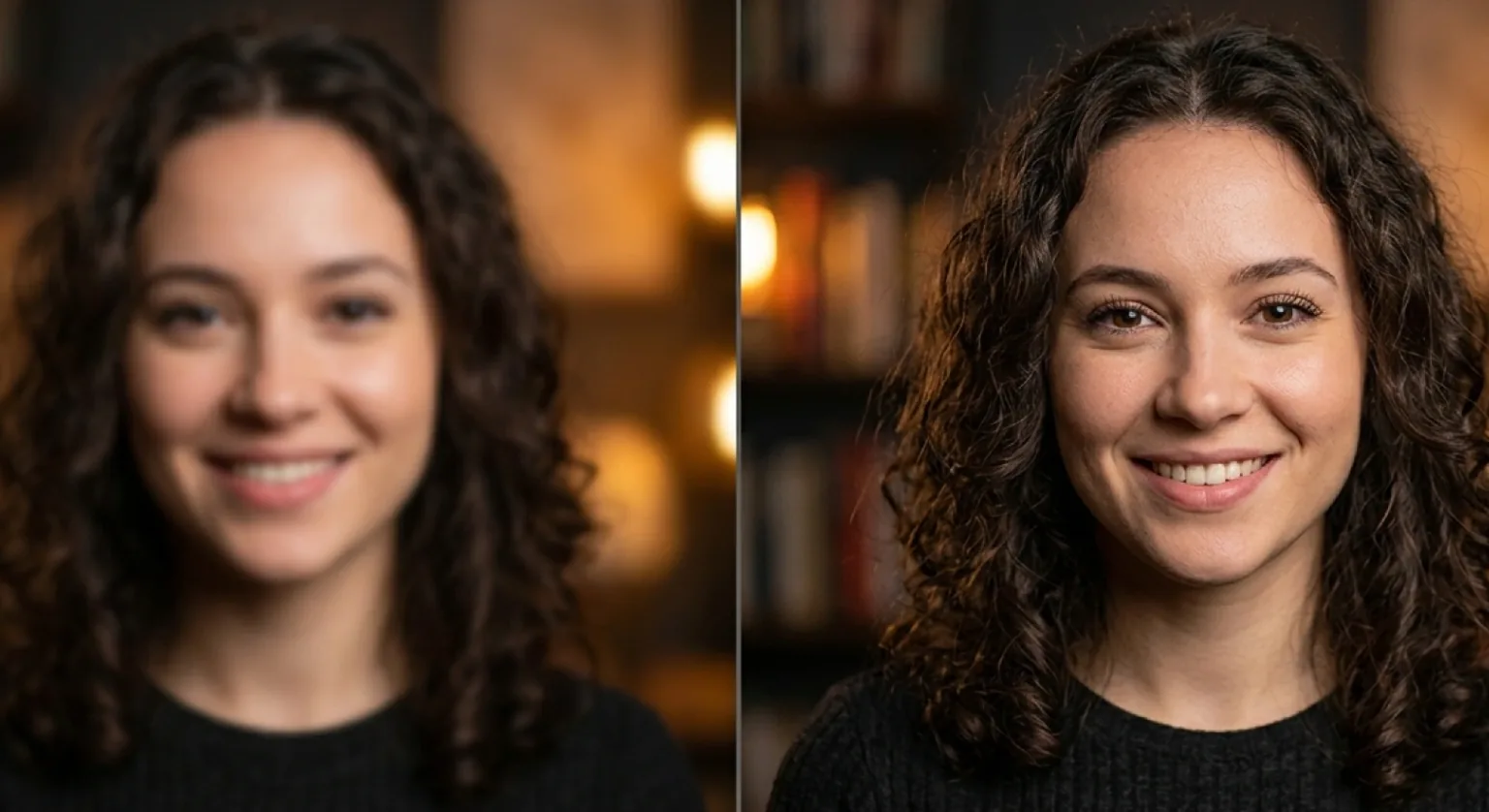

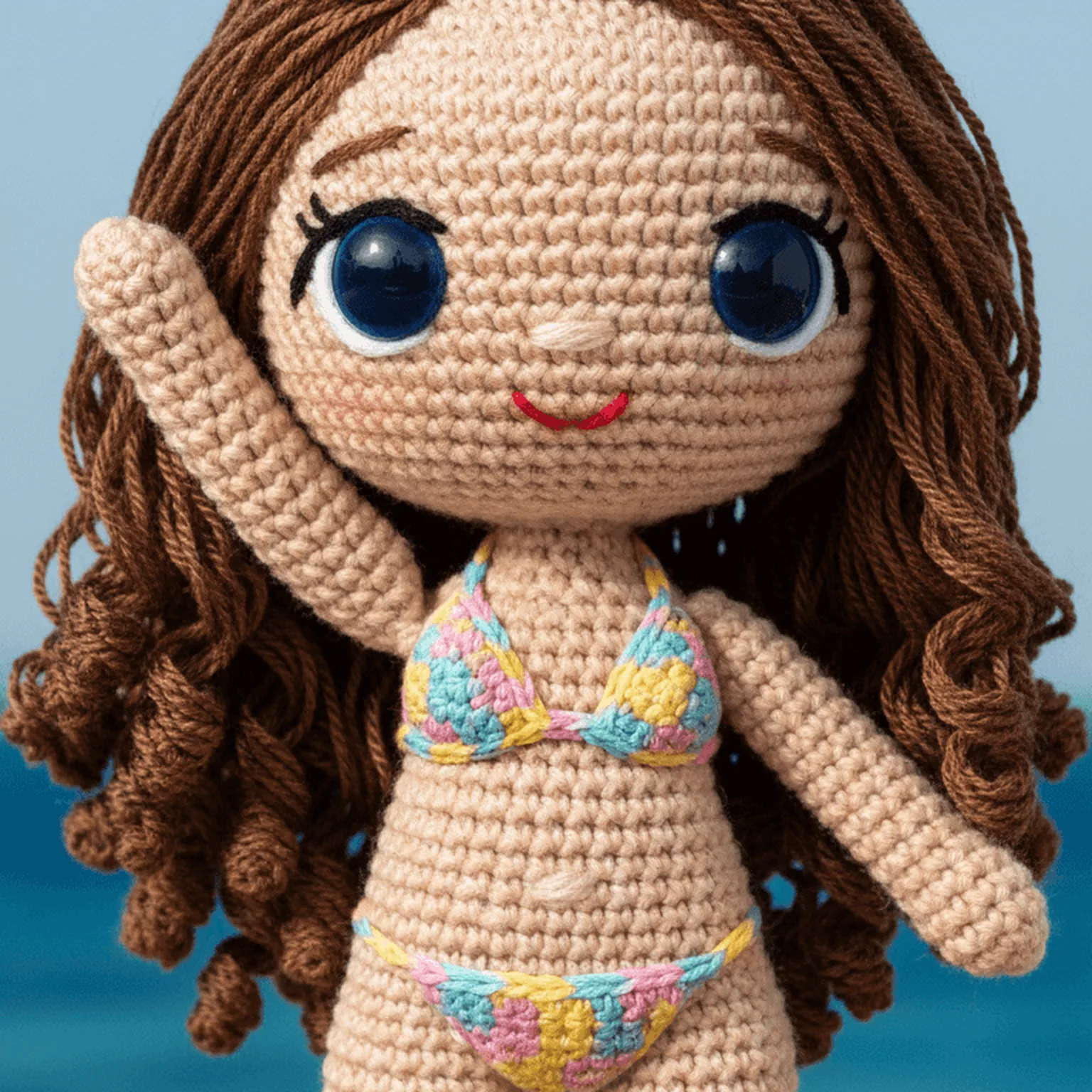
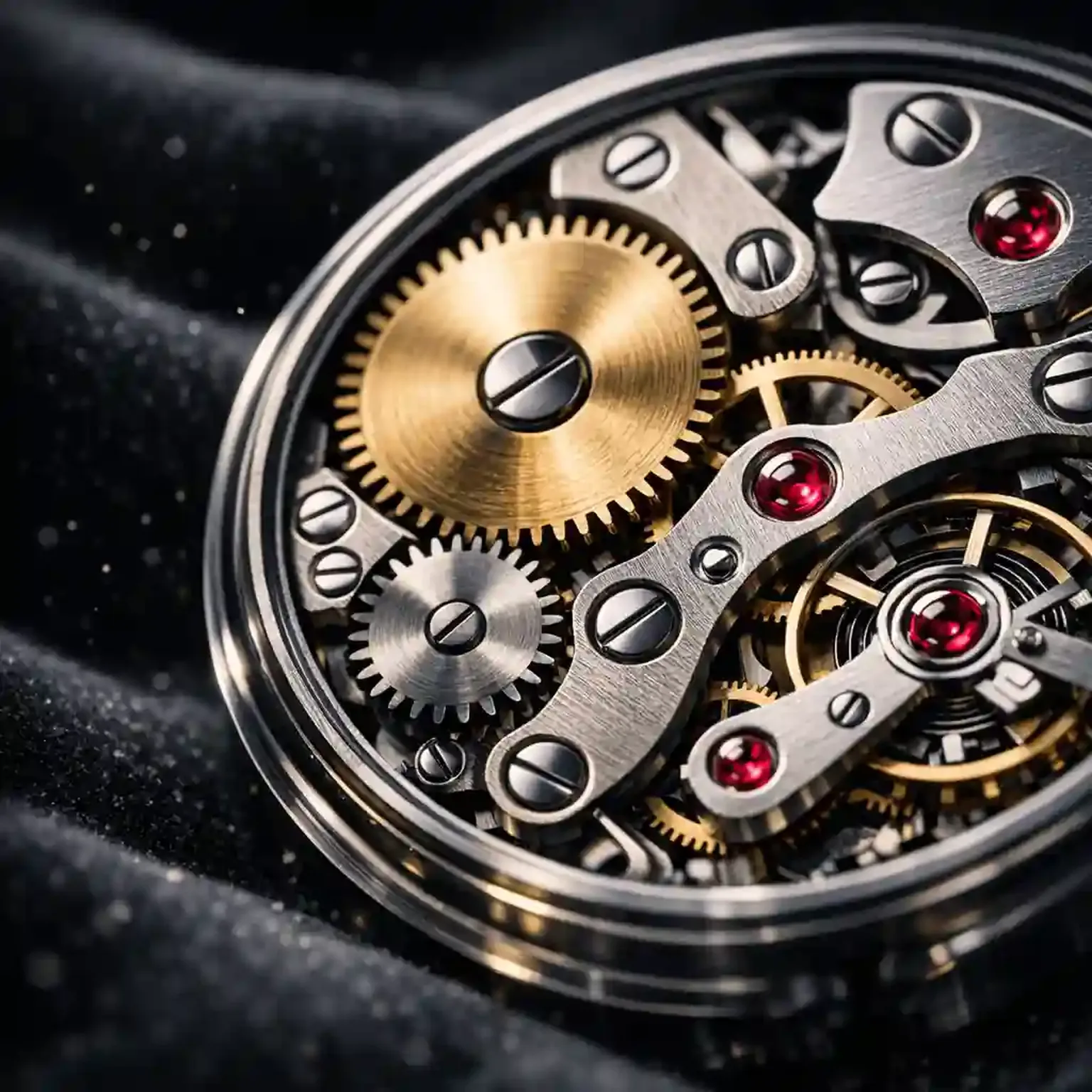

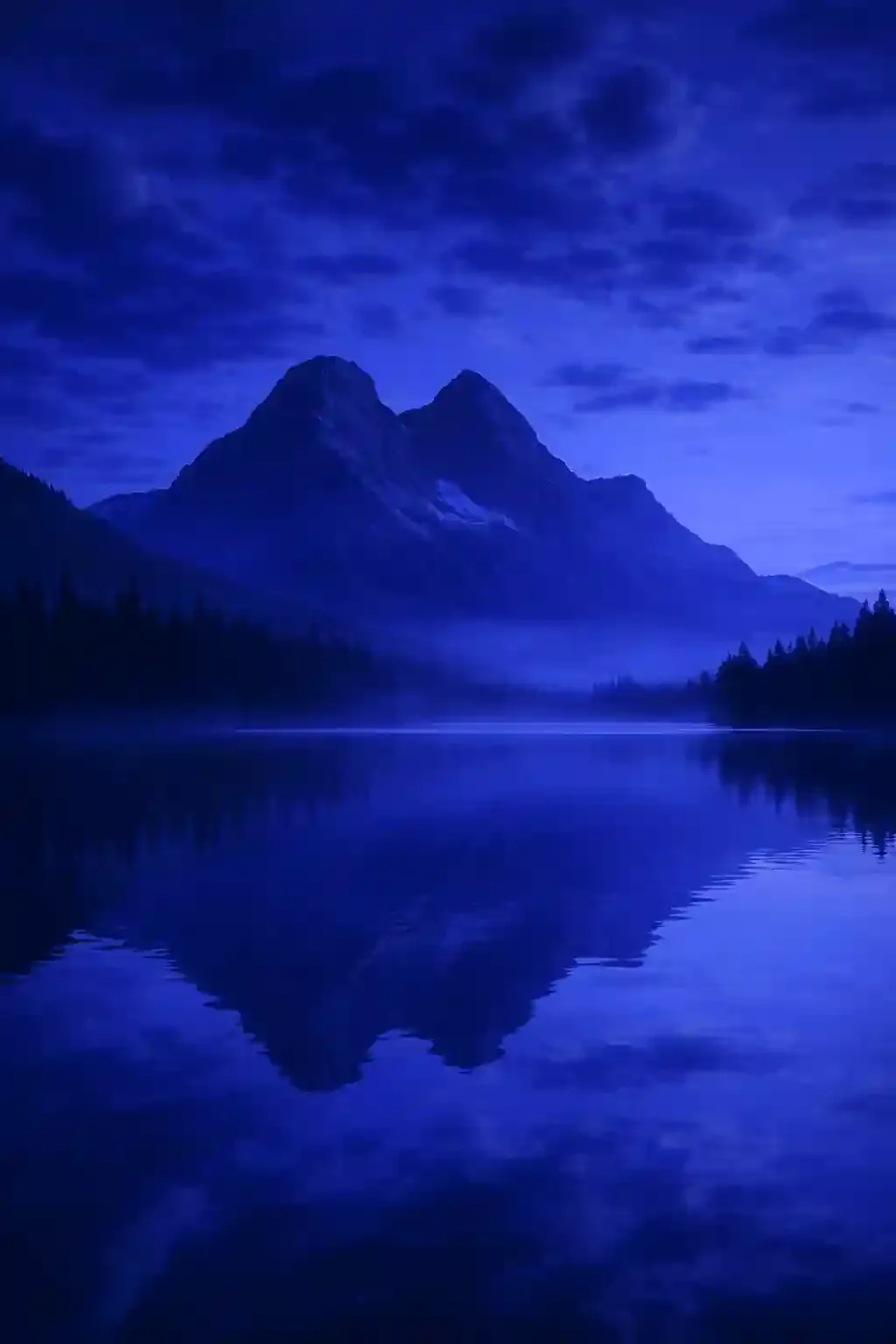
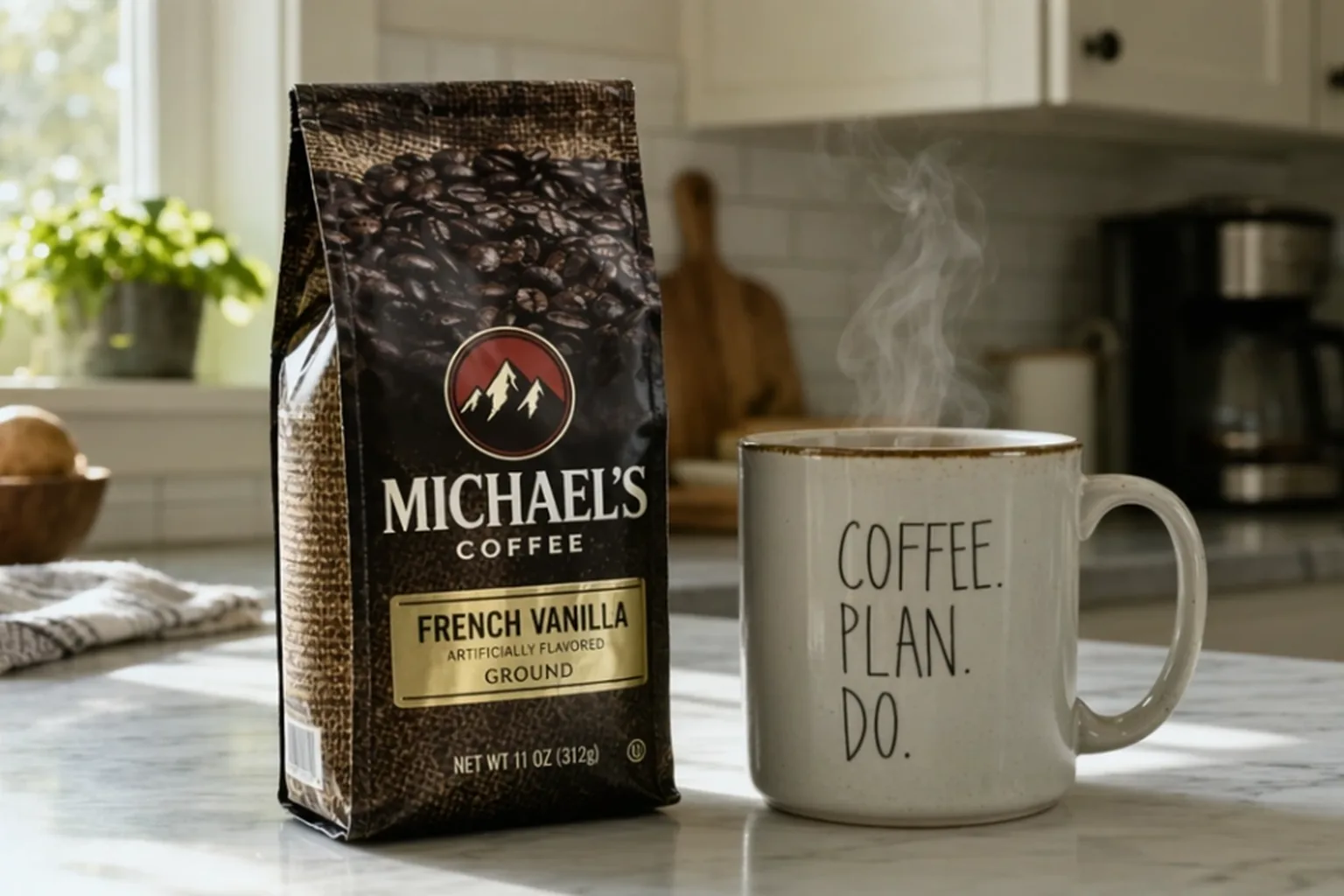
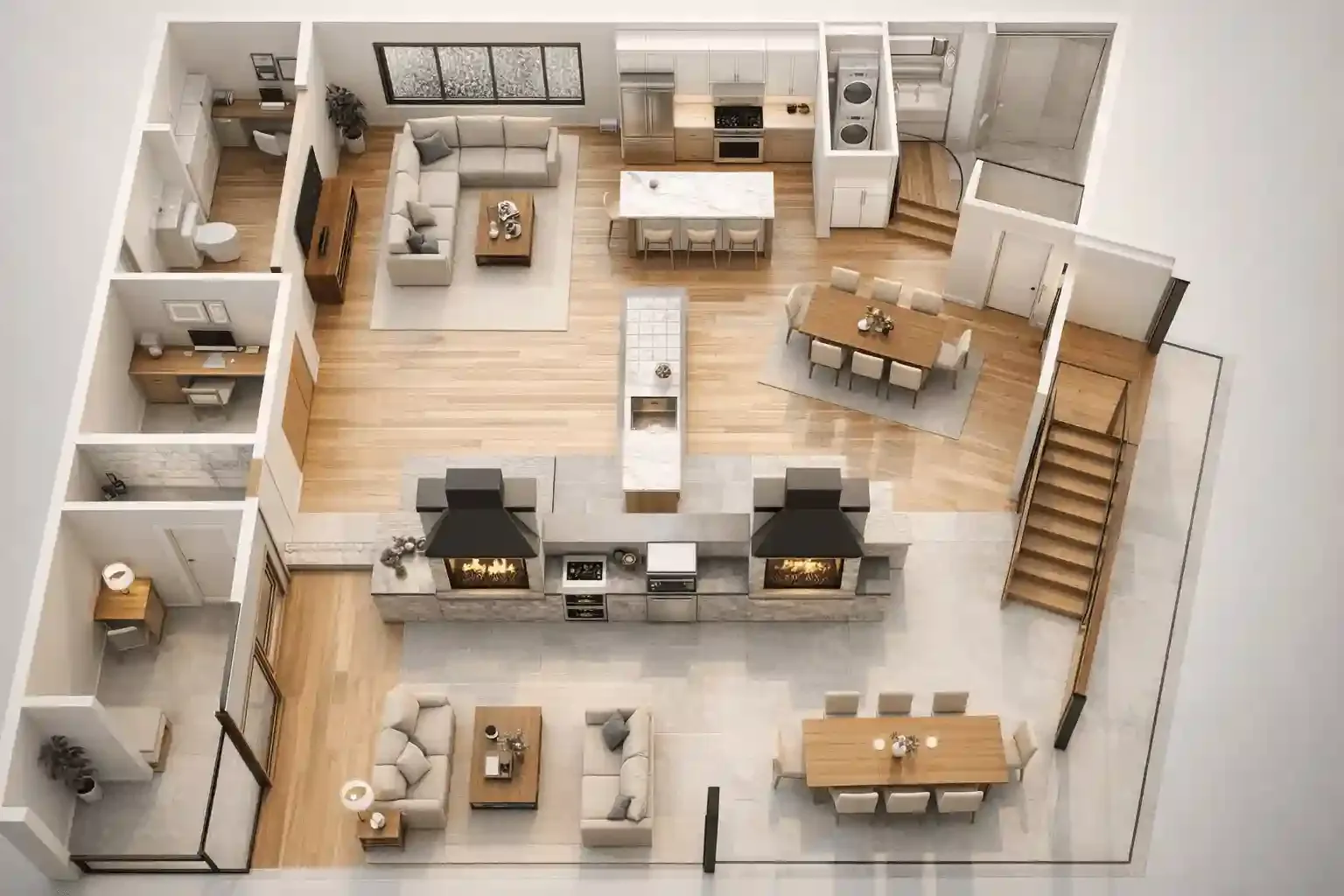
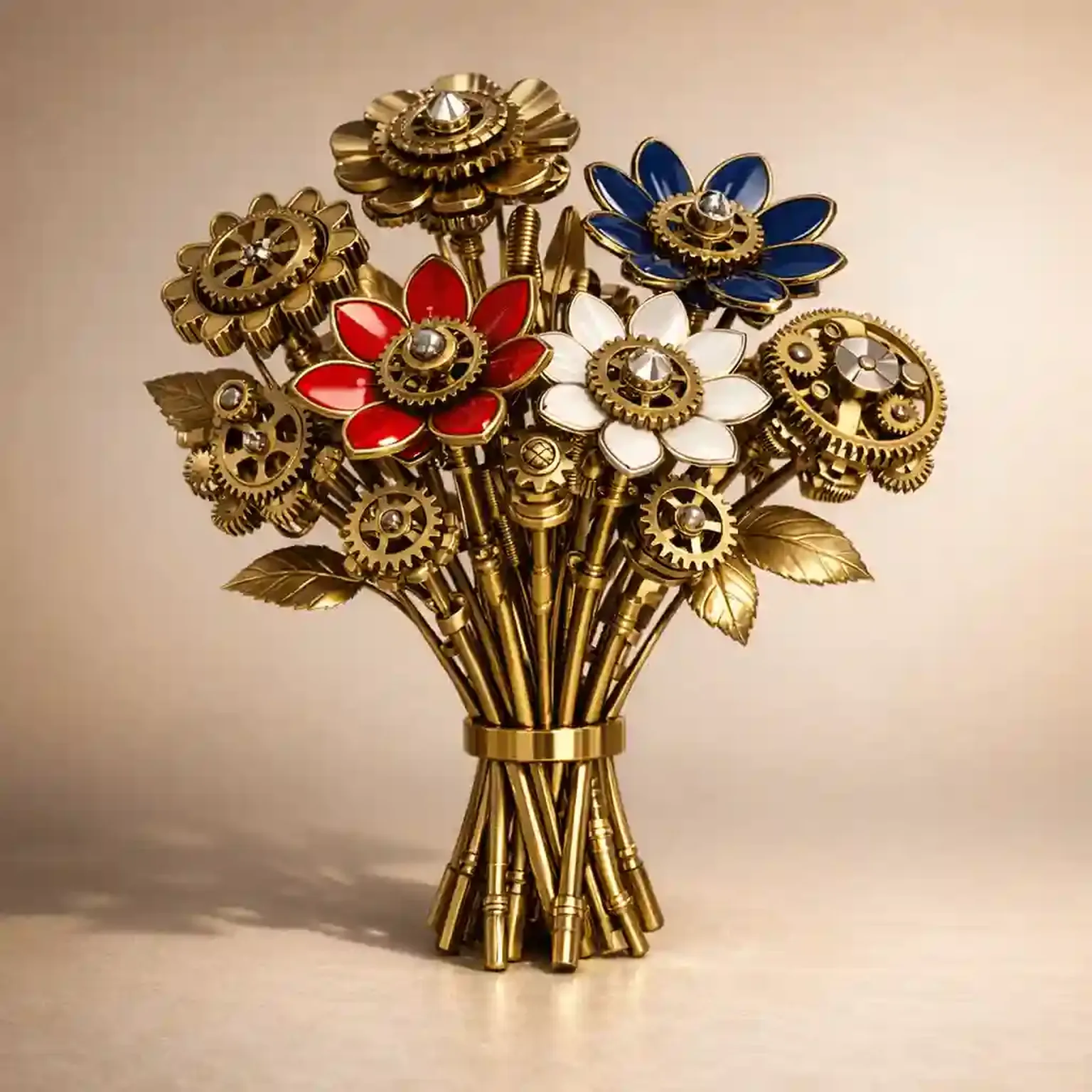
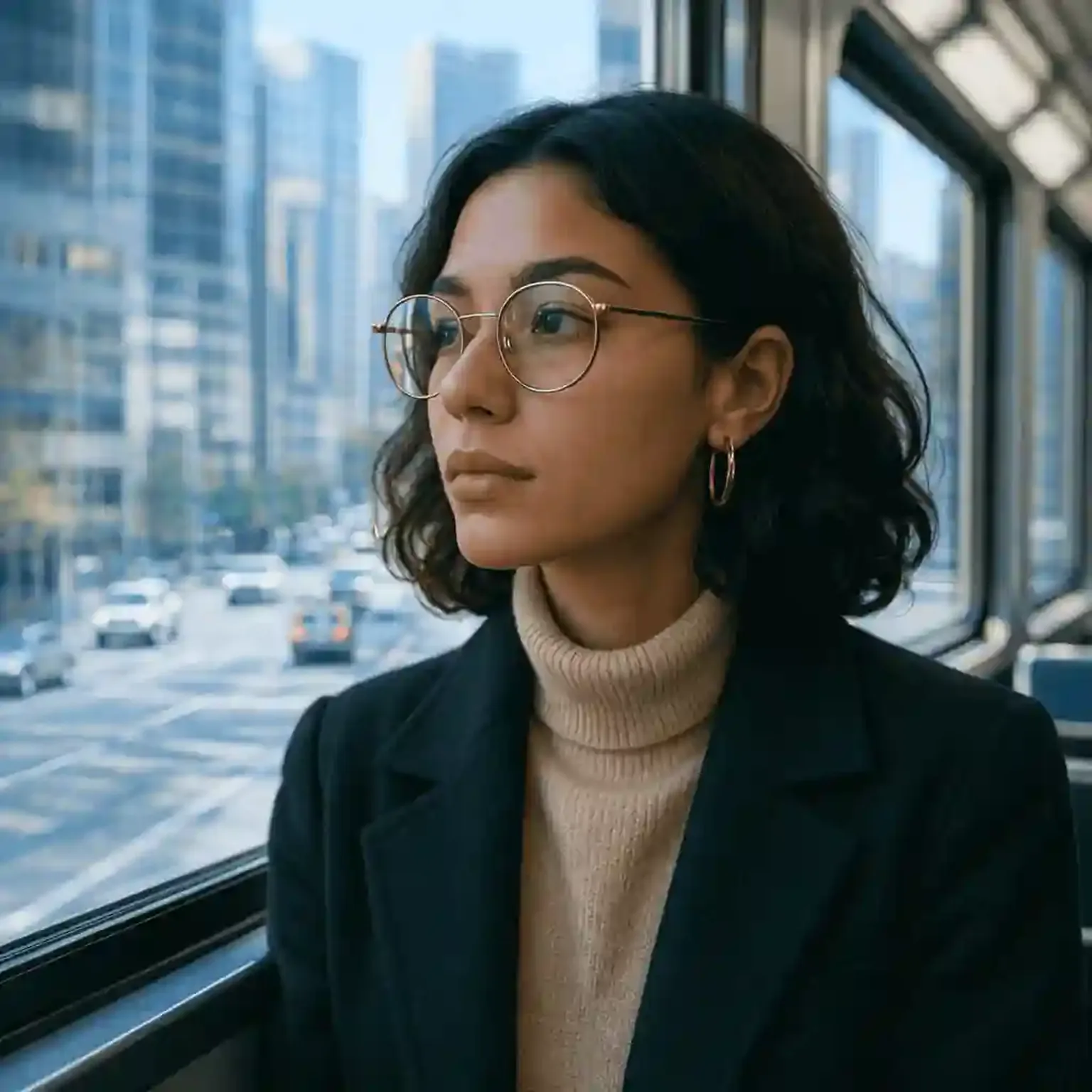
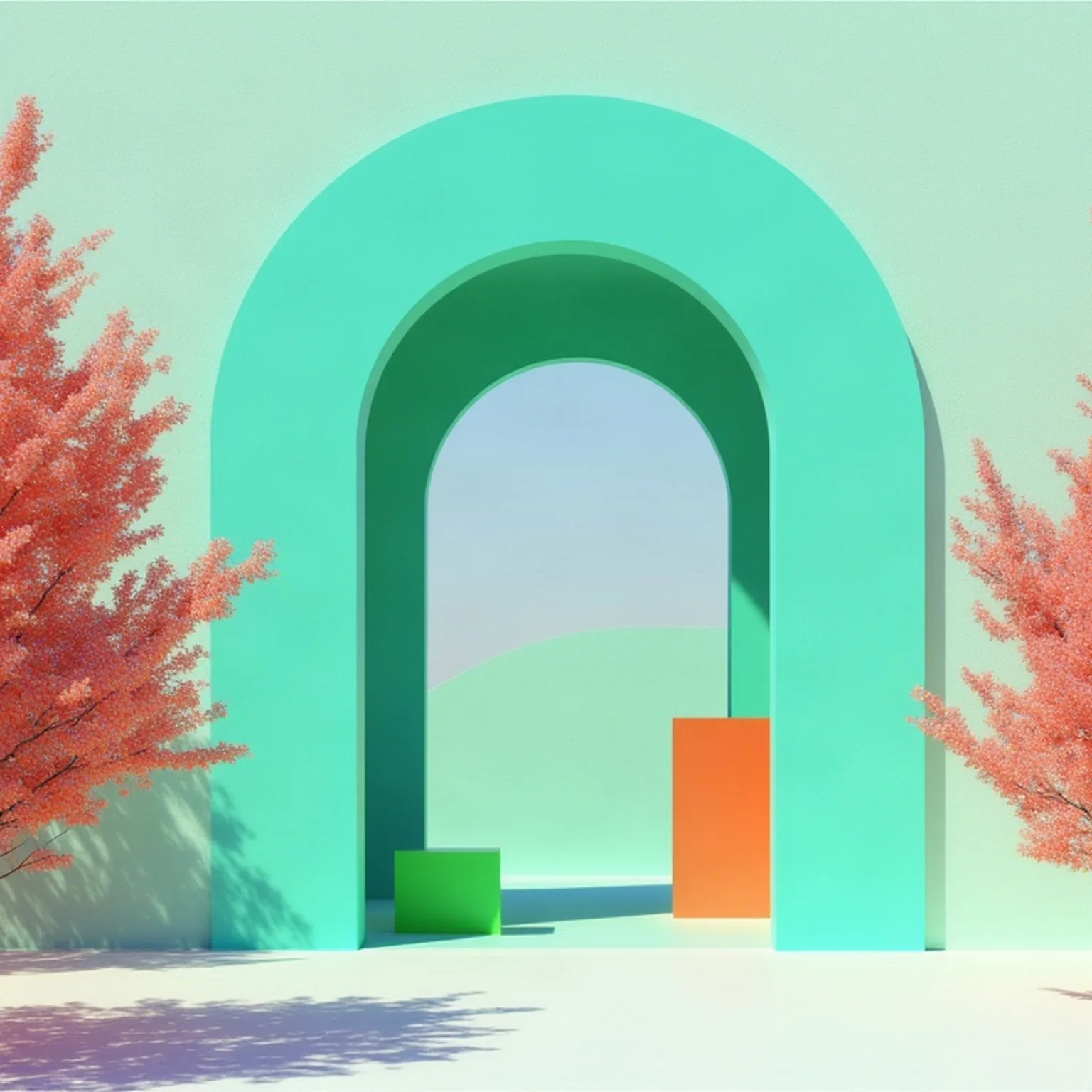
MiniMax H3 Image Key Features
The three workflows cover new images from text, new compositions based on a reference, and edits to an existing image. Use the examples below to write a brief for each.
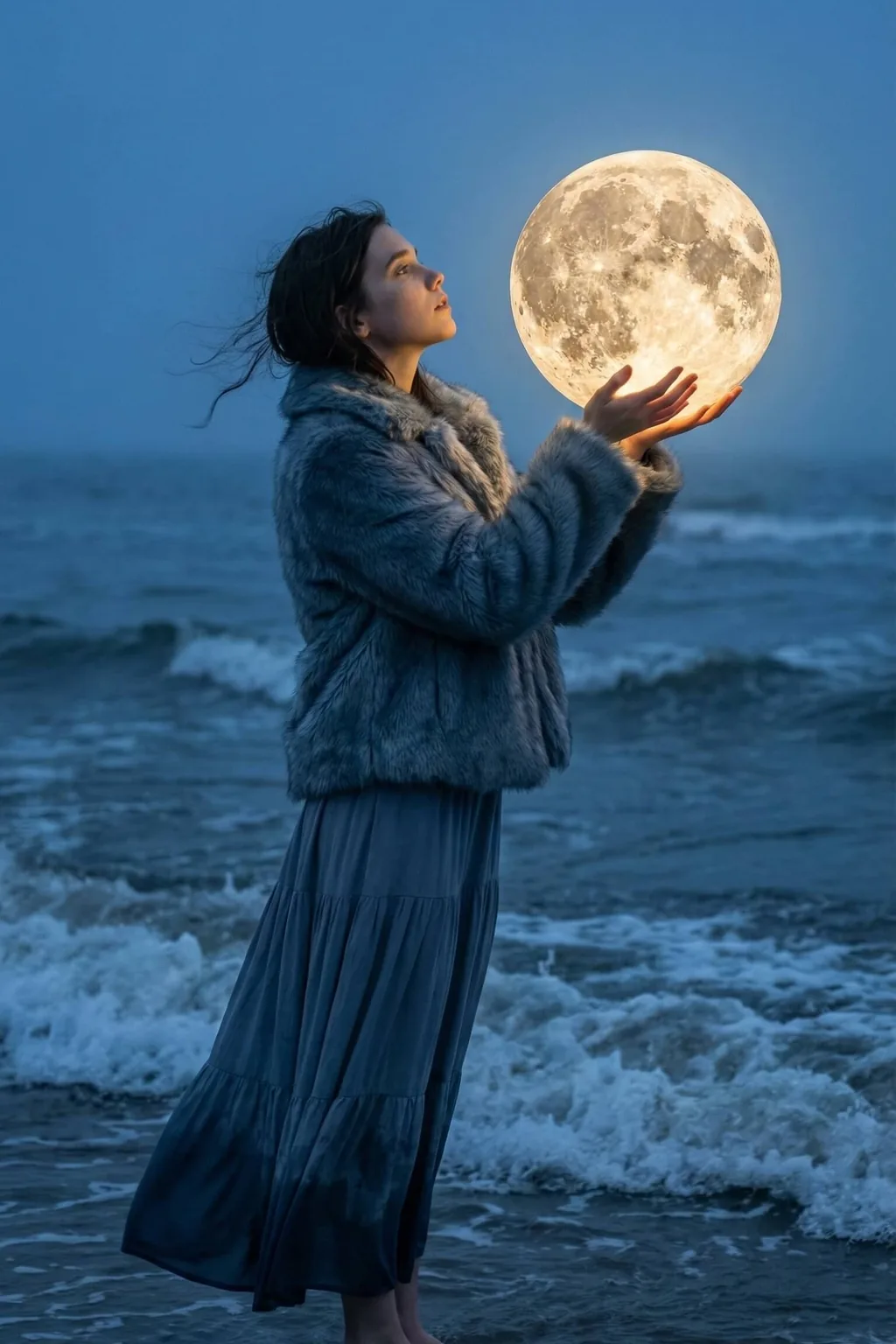
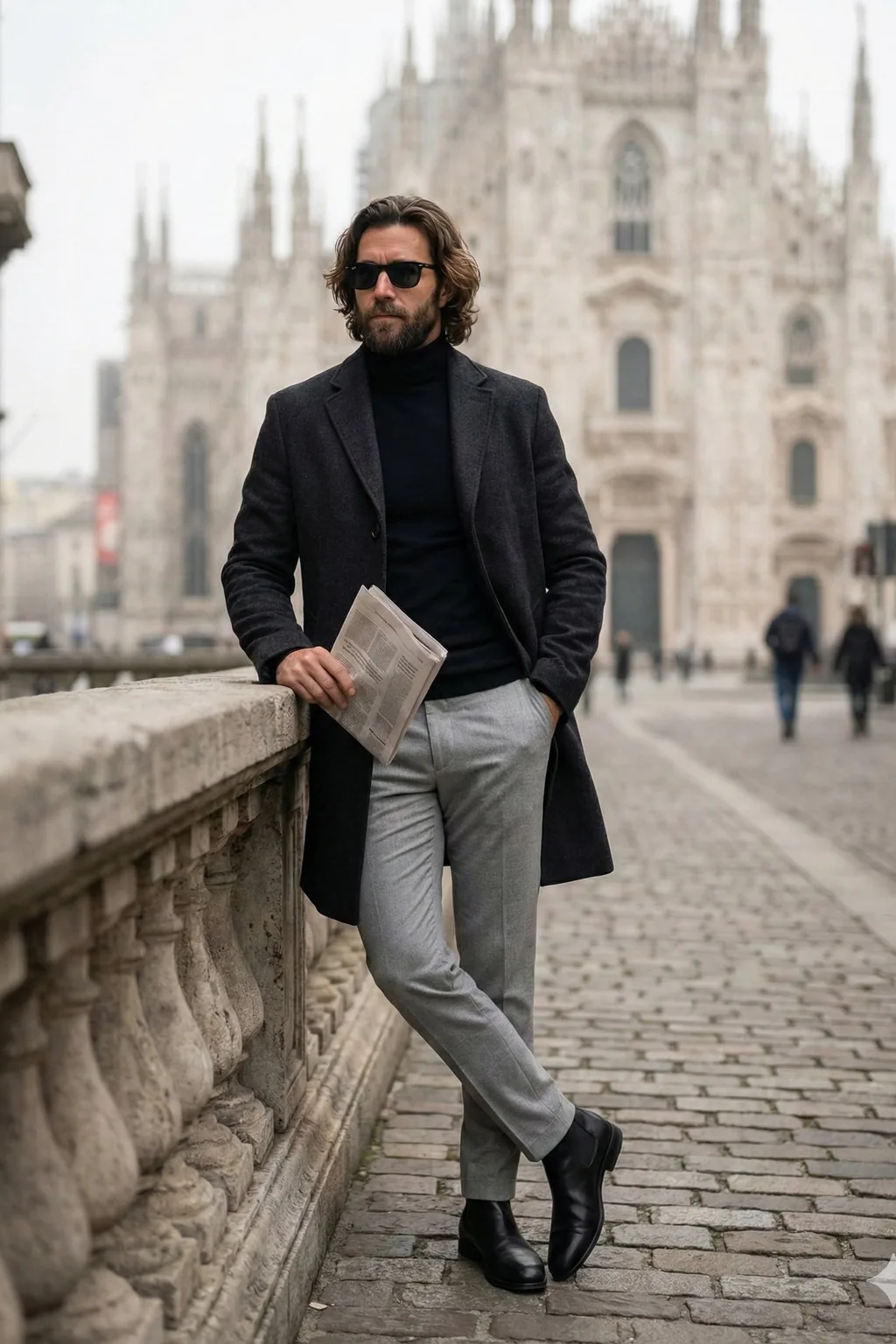
Photorealistic Image Generation
Create a portrait, still life, or product mockup from a written brief. Describe the lens perspective, material textures, and direction of light so you can judge whether the image reads like the shot you planned.
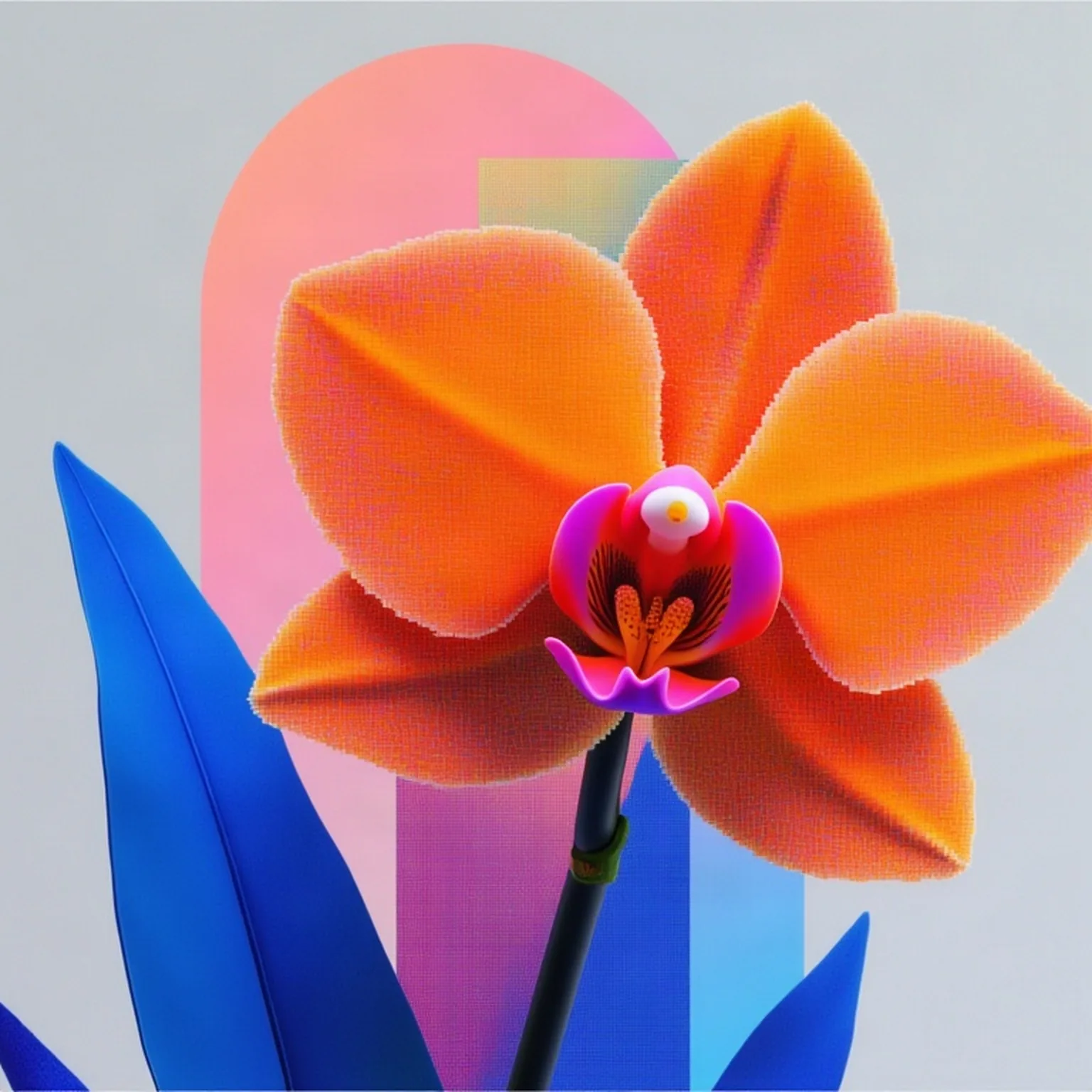
Product Color and Lighting
Describe the palette, surface finish, and lighting separately. For example, request a matte ivory package under neutral daylight and a cool gray backdrop. Compare the colors to your brand reference before publishing.
Text Rendering for Posters and Labels
Specify the exact headline or label in quotes and tell the model where it belongs. Keep copy short for mockups, covers, and signage, and proofread the result at its intended display size.
Reference-Guided Image Generation
Upload an image to guide the subject, pose, or layout. In the prompt, say which features to carry over and which to change. Try the same reference with two lighting or style directions to compare the results.
Natural-Language Image Editing
Use a written instruction to change a background, replace an object, or adjust the lighting. State what should stay fixed, such as the product logo or camera angle. Start with one change so it is easy to review.
How to Use MiniMax H3 Image Online
Start from a written brief or an image. Choose the workflow based on whether you want a new composition or a change to an existing one.
Describe Your Image or Add a Reference
Name the subject and describe the composition, light, and intended style. If you upload a reference, tell the studio which part of the image should guide the result.
Choose an Aspect Ratio and Generate
Choose a square, landscape, portrait, or classic frame for the final placement. When generation is available, review the credit cost in the studio before you submit.
Review, Refine, and Download
Check the crop, text, and details in the result. Download it when it meets the brief, or use it as the source for a targeted edit.
MiniMax H3 Image Use Cases
Use the studio to explore designs, product scenes, and editorial concepts. These examples describe creative briefs you can adapt to your own inputs.
Designers and Creative Teams
Build early packaging mockups, test a layout for a campaign, or create moodboard visuals. Write separate instructions for materials, typography and composition so changes are easy to evaluate.
Marketing and E-Commerce Teams
Use a product photo as a reference for campaign concepts. Test a clean catalog background and a lifestyle setting, then check that size, color and packaging still match the item you sell.
Content Creators and Social Media
Draft YouTube thumbnails, podcast covers, and blog headers with room for the title. Use a vertical crop for stories and a wide crop for editorial headers.
Developers and MiniMax H3 Image API
Use MiniMax’s official API documentation or model card to explore integrating generation into a product catalog or internal design tool. The studio’s browser tools and credits are separate from MiniMax API access.
MiniMax H3 Image Workflows to Try
Start from a concrete brief and decide what to check in the result. Browse the image prompt gallery for more ideas.
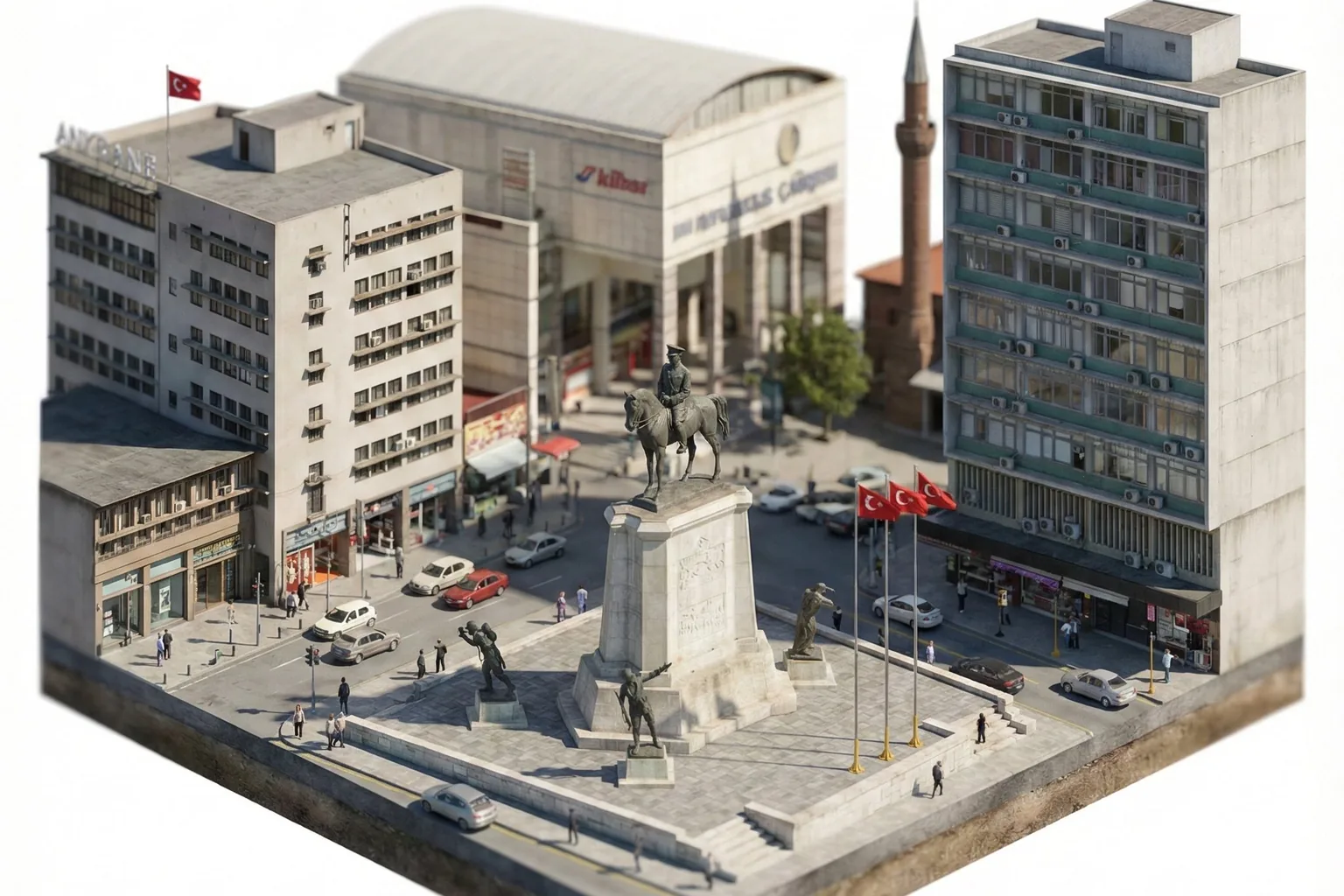
Product photography
Use a product photo to set the shape and color. Describe a new backdrop and lighting setup, then check the silhouette and label against the original.
Posters with readable text
Ask for a two-line title in the top third of the frame and leave space for event details. Specify the headline exactly and add fine print after export.
Character concept sheets
Start from a character sketch. Request a front and three-quarter view, then compare proportions, costume details, and colors across versions.
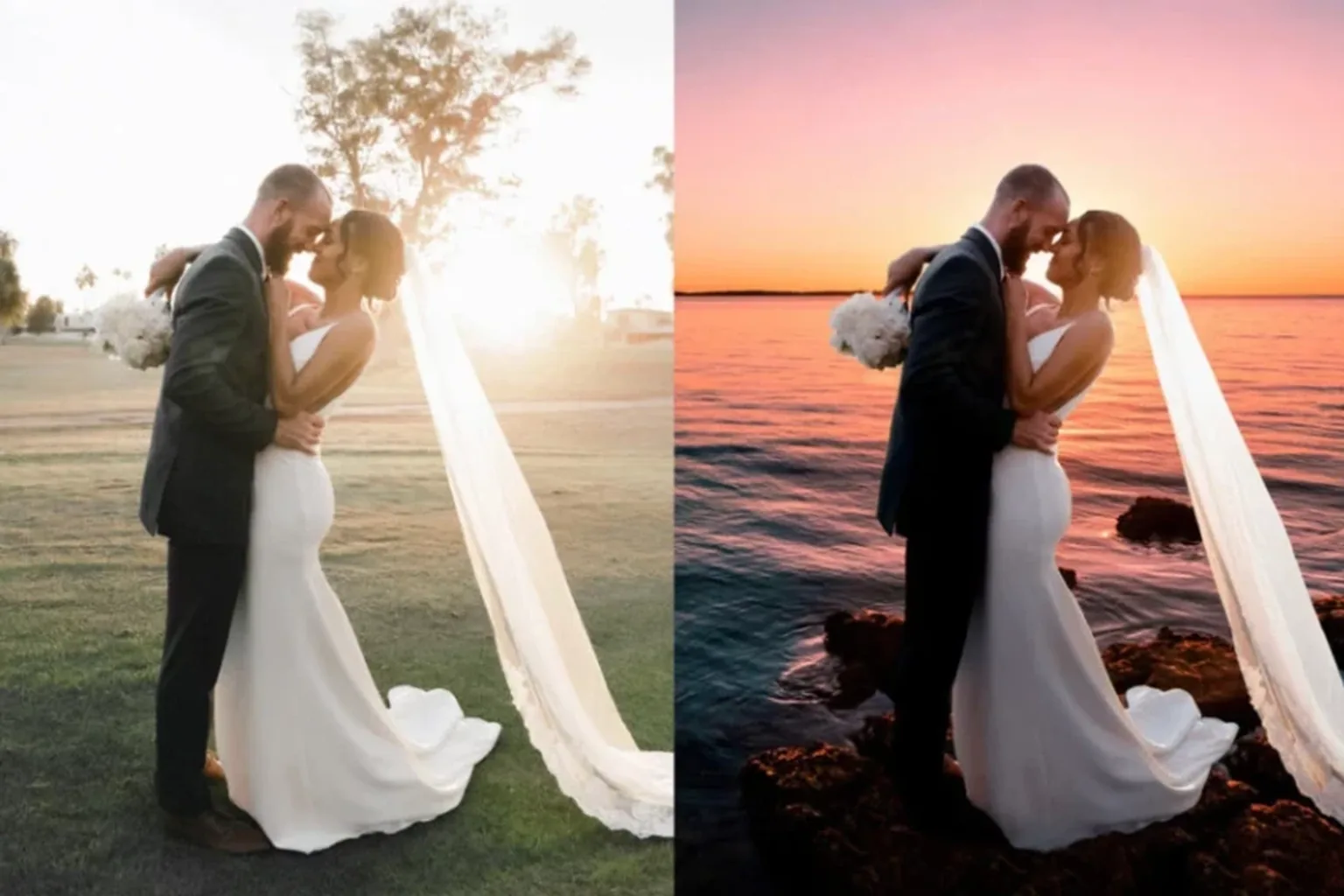
Day-to-night photo edit
Change daylight to blue hour while keeping the same camera angle and buildings. Inspect the reflections and shadows before using the edit.
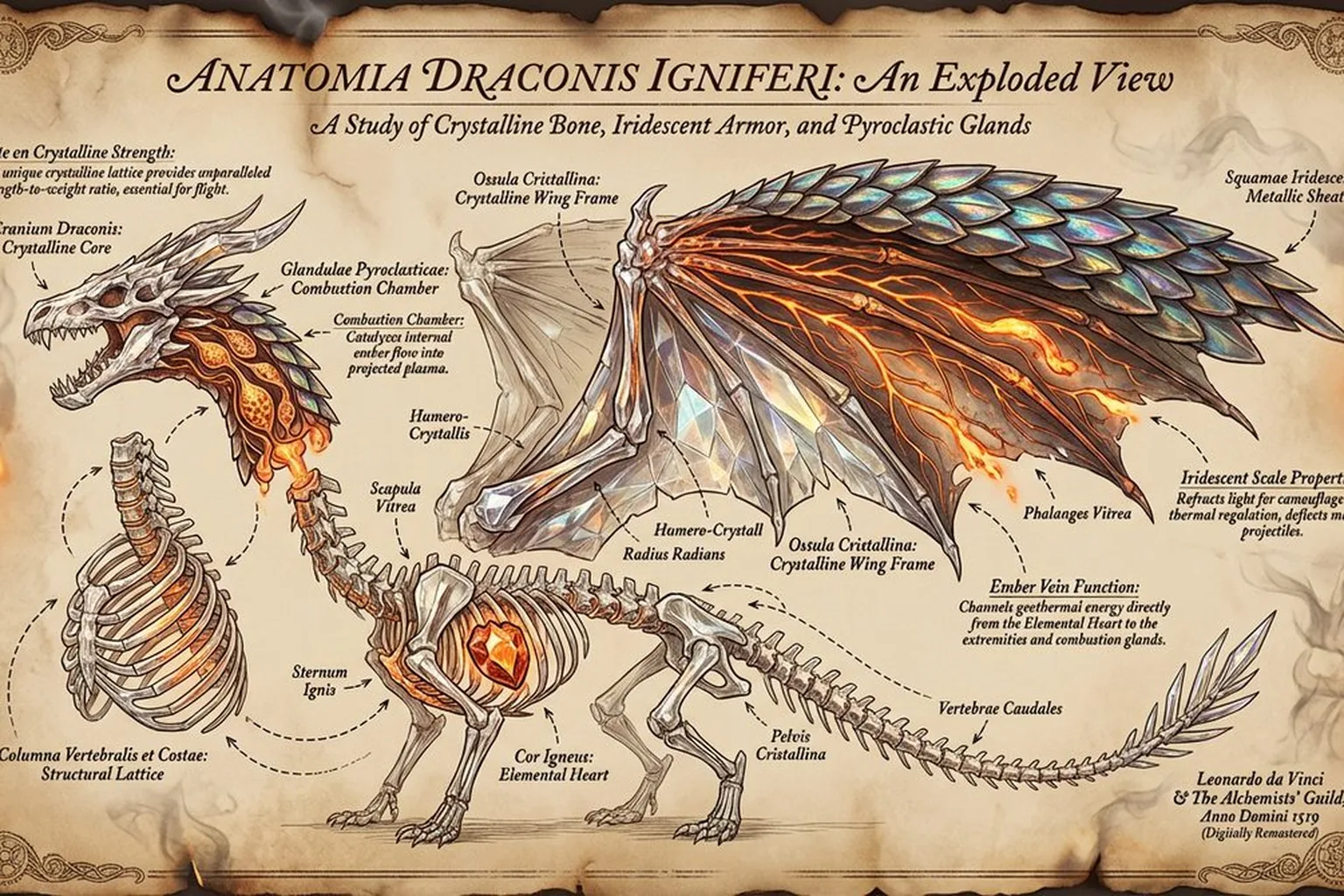
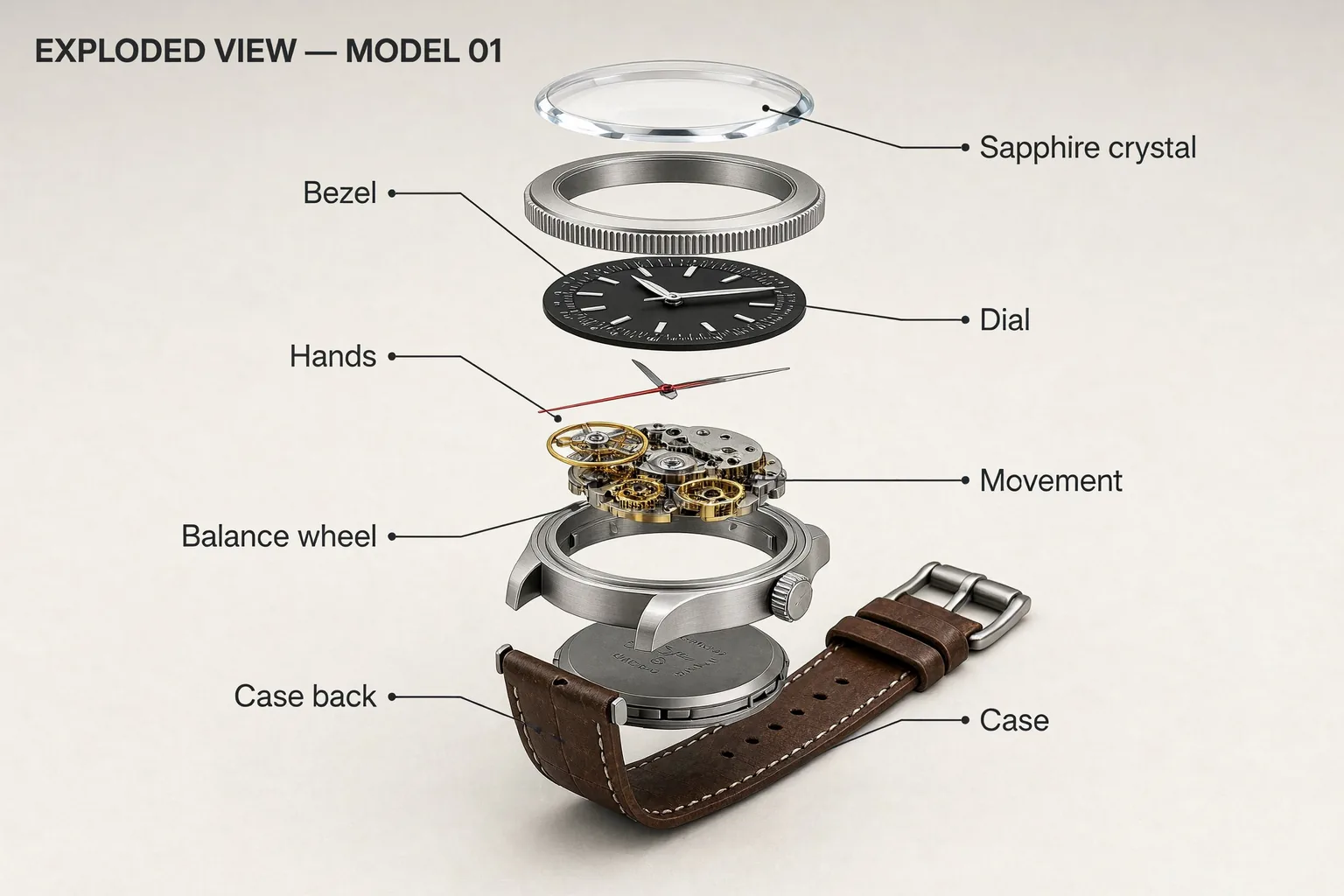
Labeled product diagrams
Outline each component and its place in an exploded view. Use short labels, then check every part against the real assembly before publishing.
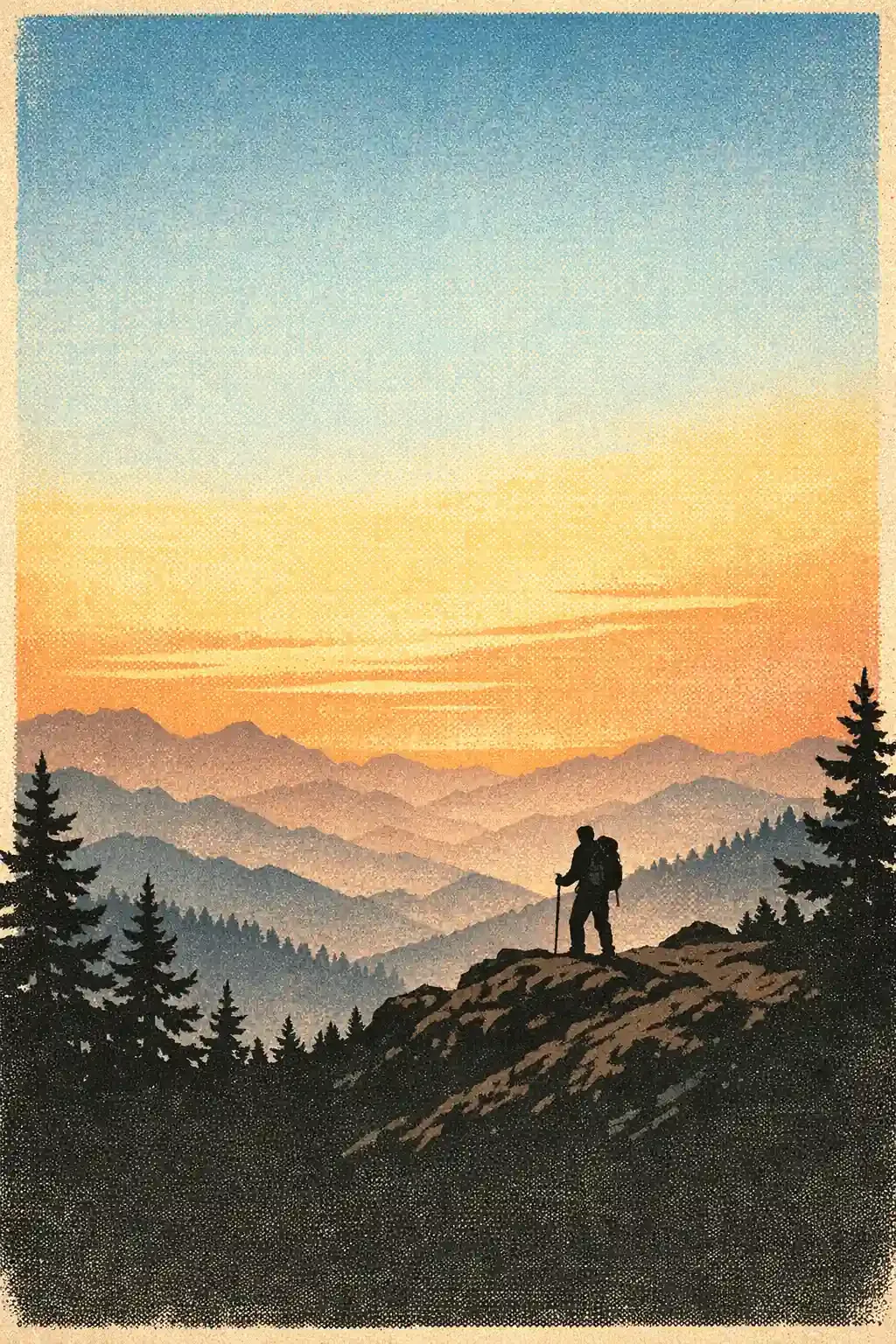
Editorial illustrations
Describe the story, palette, and subject placement. Leave room for the headline and review the composition in the crop your publication uses.
What Is MiniMax H3 Image?
MiniMax H3 Image is an open-weight model for still-image generation and editing built on MiniMax H3. The official MiniMax release documents text-to-image generation, reference-based generation, and prompt-based editing, with 4K output and support for up to 16 references in the model.
H3 Image Studio is an independent browser interface. The studio currently offers one reference slot and a choice of 1:1, 16:9, 9:16, 4:3; its generation availability and output settings depend on the connected provider. Developers can find the weights and license on the MiniMax H3 Image model card or read the official MiniMax image API guide.
Which H3 Image Workflow Should You Use?
Open the text-to-image generator when your starting point is a written brief for a new scene.
Use image-to-image generation when a photo or sketch should guide a new composition.
Use the AI image editor when you want to change part of a picture and keep the rest recognizable.
See H3 Image pricing for subscriptions and permanent credits. The studio displays the cost of a generation before submission.
MiniMax H3 Image vs GPT Image 2, Midjourney and FLUX
Compare model access, references, and editing workflows from the providers’ documentation. The table describes the named models or services; it does not rank output quality or measure the speed of this studio.
| Feature | MiniMax H3 Image | Midjourney | GPT Image 2 | FLUX.1 Schnell |
|---|---|---|---|---|
| Access | Downloadable model weights and MiniMax API | Hosted Midjourney service | Hosted OpenAI API | Downloadable model weights |
| Text to image | Supported | Supported | Supported | Supported |
| Working with references | Up to 16 in the documented model | Single or multiple Image Prompts | Image inputs for generation and edits | Text-to-image base model |
| Editing an existing image | Prompt-based image editing | Midjourney Editor | Image edits endpoint | Editing requires a separate workflow |
| When to evaluate it | A brief with several references, a targeted edit, or 4K output | Style exploration with image prompts | Image generation or editing within an API workflow | Local text-to-image generation |
MiniMax H3 Image Studio Pricing
New accounts receive 8 welcome credits. Compare subscriptions with monthly credit allocations, or see the pricing page for one-time credit packs.
Billed monthly. Cancel anytime.
- Full MiniMax H3 image model generation
- Text to image, reference & conversational editor
- Private cloud generation history & task logs
- Usage rights subject to the provider terms
- Image downloads in 1:1, 16:9, 9:16, 4:3 ratios
Billed monthly. Cancel anytime.
- Full MiniMax H3 image model generation
- Text to image, reference & conversational editor
- Private cloud generation history & task logs
- Usage rights subject to the provider terms
- Image downloads in 1:1, 16:9, 9:16, 4:3 ratios
Billed monthly. Cancel anytime.
- Full MiniMax H3 image model generation
- Text to image, reference & conversational editor
- Private cloud generation history & task logs
- Usage rights subject to the provider terms
- Image downloads in 1:1, 16:9, 9:16, 4:3 ratios
Frequently Asked Questions About MiniMax H3 Image
Find answers on the MiniMax H3-Image model, reference limits, 4K availability, credits, licensing, and how to choose a workflow.
Start a MiniMax H3 Image Project
Start with a prompt from the gallery or write your own brief. Choose text to image for a new scene, reference for visual guidance, or editor to change an existing image.